Learn AVID Media Composer while editing with our provided media files, projects and bins alongside short concise five minute tutorials. As a a beginner you can go from launching the program to the final export or if you are a more experienced Premiere or Final Cut editor, just jump to whatever topic you want using the course curriculum listed below as your guide. You have access to these videos forever!

.

Edit Video Faster...So You Can Drink More Beer. If you want to work on high end scripted television and film you need to master AVID Media Composer. This course will cover every aspect of creating, importing, editing, and exporting a finished video using AVID software with over 180 extremely short training videos no longer than 5 mins each. Using provided media files, projects and bins, watch and edit along with tutorials completely at your own pace. Everything learned here can be applied to any type of film/video created, whether a 2 hour documentary or a 10 second YouTube ad. You can download the 30 day free trial version of the software right here. AVID trial version
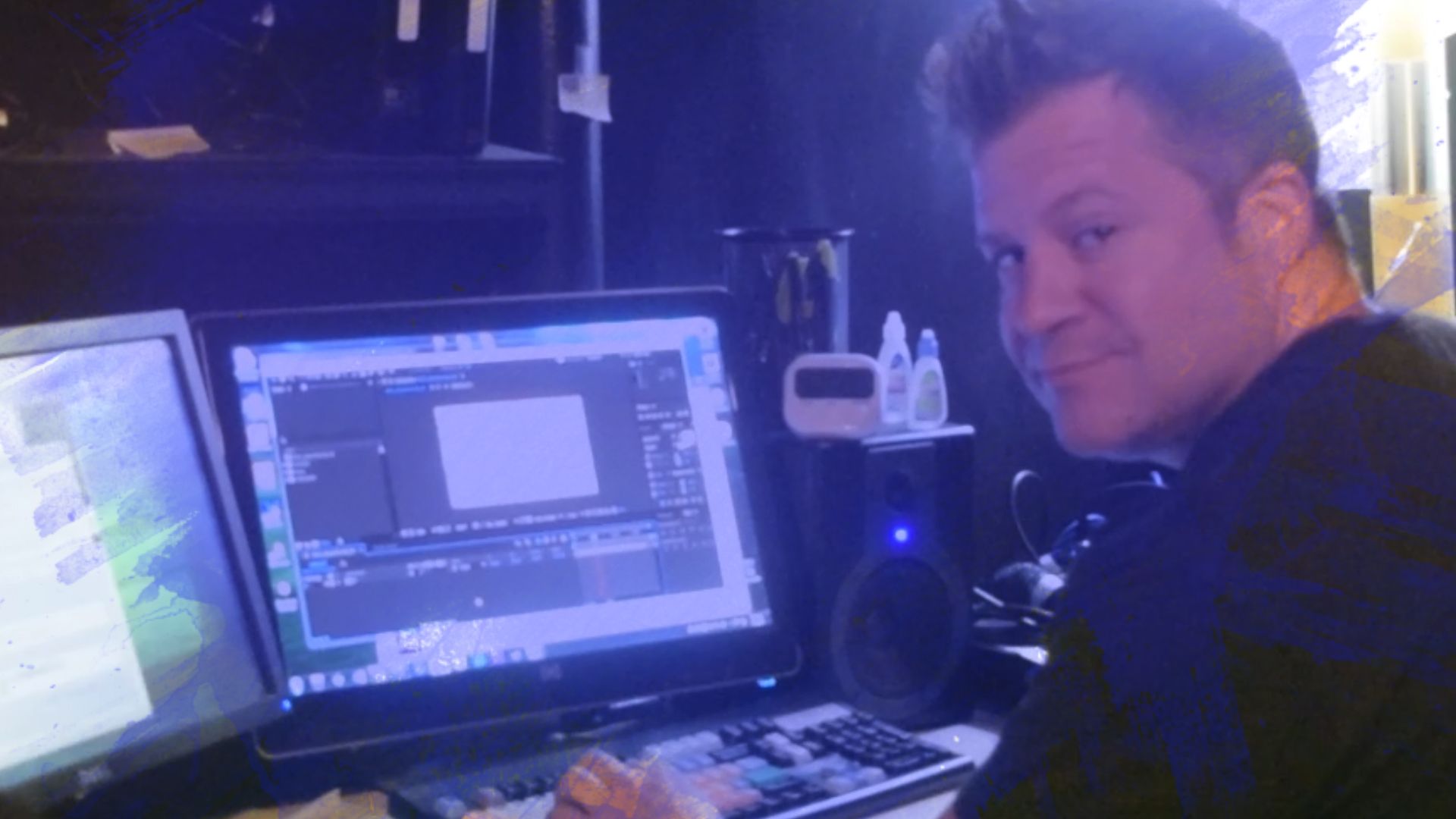
Image23

Your Instructor

Brian Thomas

I grew up as a working class kid from Long Island who had no connections whatsoever in the TV/Film industry who is now an Emmy nominated Motion Picture Editors Guild member for two decades.


There are many ways to edit on AVID but some ways are much faster and better than others and this course will show you the best ways from someone who has spent the last 20 years in New York editing for the Maury Povich show, the New York Mets, and countless corporate and social media videos. Your valuable free time drinking beer will not be wasted learning things never used in the real world and while this class will be particularly useful for short form social media, reality, sports and news editing, the way you will learn to use the keyboard to manipulate every type of footage will 100 percent apply to any type of project including Hollywood feature films. I've talked to a lot of new video editors and even more Adobe Premiere editors who think AVID is really hard to learn but that is not the case and this course is here to prove it.


Most importantly, I've been a incredibly proficient beer drinker for over 27 years.

Course Curriculum

0-AVID 2018.12 vs AVID 2021.5

1--Set Up USB Drives

2--Set Up The Avid Projects Folder

3--The Select Project Window

4--Make A New Project

5--Set Up Composer Window

6--Set Up Your First Bins

BONUS--Setup For One Monitor (Laptop)

7--Set Up Sequence--Part-1

8--Set Up Sequence -- Part-2

8A--Thoughts For Premiere Editors and JKL

9--Set Up Learn To Edit Project

10--Import Audio File

11--Marking IN and OUTs

11A--Playing Clips Faster

12--Editing Clips Into The Timeline Pt.1

13--Editing Clips Into The Timeline Pt.2

PRACTICE -- Marking Ins and Outs

14--Moving Clips Back In The Timeline

15--Moving Clips Forward In The Timeline

15A--Add Edit Button (Razor Tool)

15B--Nudging Footage

15C--Slip And Slide Editing

16--Importing Interview Footage

17--Adjusting The Clips Audio

18--Editing This Interview--Pt-1

19--Editing This Interview--Pt-2

20--How To Select Clips In The Timeline

21--Moving Clips On The Timeline

22--Finishing Up This Interview Edit

23--Customizing The Timeline--Pt-1

24--Customizing The Timeline--Pt-2

25--Set Up Custom Bin Columns--Pt-1

26--Set Up Custom Bin Columns--Pt-2

27--Set Up Custom Bin Columns--Pt-3

28--How Avid Manages Media-Pt-1

29--Deleting Media in AVID

30--Bringing Back Deleted Media

31--Set Up The Extend Button Shortcut

32--Import Picts And Trimming

32A--Sync Locks

33--Using The Extend Key-Pt-1--CRASHED

34--Using The Extend Key-Pt-2

35--Learning To Trim--Pt-1

36--Learning To Trim--Pt-2

37--Learning To Trim--Pt-3

38--How To Make Dissolves in AVID

39--Making All Kinds Of Dissolves

40--Rendering Dissolves

41--Understanding Render Media Files

42--Dips To Black

43--WhiteFlashes--Pt-1

44--WhiteFlashes--Pt-2

45--The Source Browser Window-Pt-1

46--The Source Browser Window-Pt-2

47--The Source Browser Window-Pt-3

48--Importing Pictures--Pt-1

49--Importing Pictures--Pt-2

50--Importing Pictures--Pt-3

51--Codecs Explained--Pt-1

52--Codecs Explained--Pt-2

53--Alpha Channels

54--Containers Explained

55--Importing Music--Pt-1

56--Importing Music--Pt-2

57--Mono vs. Stereo

58--Audio Mixer--Pt-1

59--Audio Mixer--Pt-2

60--Importing Sound Effects--Pt-1

61--Importing Sound Effects--Pt-2

62--Editing with Our Audio

63--Audio Rubberbanding--Pt-1

64--Audio Rubberbanding--Pt-2

65--Audio Waveforms

66--Audio Workflows in AVID

67--Match Frame And Zoom In/Out of Timeline

68--Copy/Paste Into Source Monitor

69--Editing Mrs. Carter--Pt-1

70--Editing Mrs Carter--Pt-2

71--Editing Mrs Carter--Pt-3

72--Editing Mrs Carter Video

73--3D Warp Effect Overview

74--3D Warp Effect Scaling

75--3D Warp Effect Saving Template

76--3D Warp Effect Final Overview

77--Wipes, Film, Timecode Generator

78--Image Effects

79--Avid Pan and Zoom

80--Paint Effect

81--Animatte Effect

82--More Effects Explained

83--Motion Effects--Pt-1

84--Motion Effects--Pt-2

85--Fit to Fill

86--Speed Ramps--Pt-1

87--Speed Ramps--Pt-2

88--Take My SpeedRamps Bin

89--Freeze Frames

90--Editing Mrs. Carter--Pt-1

91--Editing Mrs. Carter--Pt-2

92--Editing Mrs. Carter--Pt-3

93--Editing Mrs. Carter--Pt-4

94--Setup Color Correction Workspace

95--The Color Correction Windows

96--Color Correction Tool--Pt-1

97--Color Correction Tool--Contrast

98--Color Correction--Saturation

99--Color Correction--Green Level

100--Saving Color Correction Parameters

101--Color Correcting This Video

102--Color Correction Final Thoughts

103--Exporting Mrs. Carter

104--Export Settings Overview

104A--Thoughts On Video Quality

105--Export Settings for YouTube --1080p

106--Exporting--1080p--Medium

107--Exporting 720p--Med

108--Going Over Our Exports

109--Cleaning Up Export Settings

110--Exporting for EVS

111--Exporting Stills

112--Exporting Audio

113--Exporting A Video For Email

114--Using The Media Tool

115--Selecting Media Relatives

116--Deleting Media

117--Organize Deleted Media

118--Batch Import Media--Pt-1

119--Batch Import Media--Pt-2

120--Avid Project and Bin Files

121--Set Up Indie Film Project

122--Opening Indie Film Project

123--Importing IndieFilm Media--Pt-1

124--Importing Indie Film Media--Pt-2

125--Importing Indie Film Media--Pt-3

126--Going Over Sequence Issues

127--Going Over Timecode Issues

128--Color LUTs and LOG footage

129--Syncing Our Raw Footage

130--Setting Up Our Footage To Edit

131--Editing This Scene

132--Final Thoughts About This Edit

133--Set Up Music Video Project

134--Subclips--Pt-1

135--Subclips--Pt-2

136--Markers/Locators

137--Video Mixdowns

138--Audio Mixdowns

139--Audio Mixdown -- Multiple Mix

140--L and J Cuts -- CRASHED

141--L and J Cuts Explained

142--Mixed Frame Rates--Pt-1

143--Mixed Frame Rates--Pt-2

144--Mixed Frame Rates--Pt-3

145--4K Proxy Workflow--Pt-1

146--4K Proxy Workflow--Pt-2

147--4K Proxy Workflow--Pt-3

148--4K Proxy Workflow--Pt-4

149--Set Up Our Grid Marks

150--Nested Effects

151--Collapse Tool

152--Saving Nested Effects

153--4x3 Aspect Ratio

154--Green Screen Key

155--Matte Keys

156--Audio EQ Tool

157--AudioSuite--Pt-1

158--AudioSuite--Pt-2

159--Normalize Audio

160--Audio Track Effect Tool

161--Group Clips--Pt-1

162--Group Clips--Pt-2

163--Group Clips--Pt-3

164--Working With Group Clips--Pt-1

165--Working With Group Clips--Pt-2

166--Title Tool--Pt-1

167--Title Tool--Pt-2

168--Title Tool--Pt-3

169--Consolidate Media--Pt-1

170--Consolidate Media--Pt-2

171--Consolidate Media--Pt-3

172--Consolidate Media--Pt-4

173--Digitize Tool

174--Focus Button

175--Find Bin Button

176--Show Reference Clips

177--Importing LUTS

178--Avid Attic--Pt-1

179--Avid Attic--Pt-2

180--Project Window Thoughts

181--Changing A Projects Name

182--Where to Find Editing Resources

183--Beer

Frequently Asked Questions

The course starts now and never ends! It is a completely self-paced online course - you decide when you start and when you finish.

How does lifetime access sound? After enrolling, you have unlimited access to this course for as long as you like - across any and all devices you own.

We would never want you to be unhappy! If you are unsatisfied with your purchase, contact us in the first 30 days and we will give you a full refund.
Get started now!

OneTime
USD 45

Learn AVID for the price of a case of craft beer!

Made in FreshLearn